o
p
t
i
m
a
r
o
b
o
t
i
c
s

Make a Call


Make a Call
Blogs
Why Is My POS Machine Battery Not Charging?
Why Is My Pos Machine Battery Not Charging? This question often appears after a busy sales shift. The terminal shows a charging icon, yet its battery percentage remains frozen. Sometimes, the problem is simple. The cable may be damaged, the adapter may be underpowered, or the charging contacts may be dirty.
Battery specialist Isidor Buchmann offers a useful reminder: “A battery is a chemical product, not a fuel tank.” His point matters because a POS Machine Battery can lose capacity through age, heat, deep discharge, and constant use. A terminal left beside a hot receipt printer may charge slowly. A loose dock connection can create the same symptom. The screen may still light up, which makes diagnosis confusing.
Start with the visible details. Check whether the adapter matches the manufacturer’s voltage and current requirements. Inspect the connector for bent pins, dust, or unusual warmth. Try a verified cable and another approved power source. Then leave the device connected for twenty minutes. Some depleted batteries need time before the charging indicator changes.
Do not guess too quickly.
A trained technician should test the battery, charging port, and power circuit separately. A multimeter reading can help, but it should not replace the manufacturer’s service procedure. I have seen troubleshooting guides focus heavily on software resets, while ignoring worn contacts and swollen cells. That is an easy mistake. If the battery case bulges, smells unusual, or becomes hot, stop using the terminal and arrange professional inspection. Reliable diagnosis protects transaction uptime, customer trust, and the equipment itself.
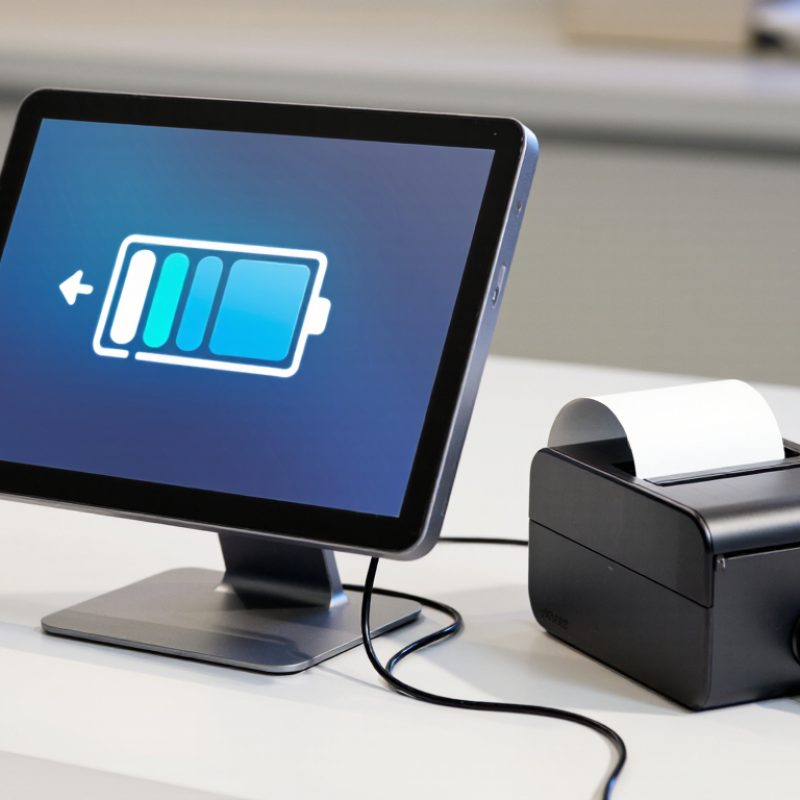
Table of Contents [Hide]
Define the POS Battery Type and Its Typical 300–500 Cycle Life
Why Is My POS Machine Battery Not Charging?
Most portable POS machines use rechargeable lithium-ion batteries. Their typical service life is about 300–500 full charge cycles, but this is not a fixed deadline. One cycle equals 100% of the battery’s used capacity, even across several shorter charging sessions.
A machine using 50% today and 50% tomorrow has used one cycle. That distinction matters.
Charging may stop because of a damaged cable, blocked charging port, unsuitable adapter, or battery protection fault. Heat also reduces charging performance. A battery left near a hot window may refuse to charge until it cools.
After 300–500 cycles, reduced capacity is normal, but sudden failure may indicate a loose connector or damaged cell. Do not guess.
Check the service manual, inspect the port under good light, and record charging behavior. A qualified technician should test voltage and replace swollen batteries safely.
Tips: Use the specified charger and keep the battery between moderate temperatures. Avoid regularly draining it to zero. Clean the port gently with approved tools, never with metal objects. If the device shows no charging symbol, try a known-good cable and outlet. If it becomes unusually hot, swollen, or smells strange, stop using it immediately. Cycle estimates can be imperfect; actual life depends on charging habits, storage time, workload, and operating temperature.
Brands
Proudly Trusted by Top Suppliers Worldwide







Let us know and we will automate, together to fit your industrial needs.
 +91-97254 16844
Clients
Proudly Trusted by Top Companies Worldwide


Do you need Help? Get in touch.
X
Please fill out the form below and we will get back to you as soon as possible.